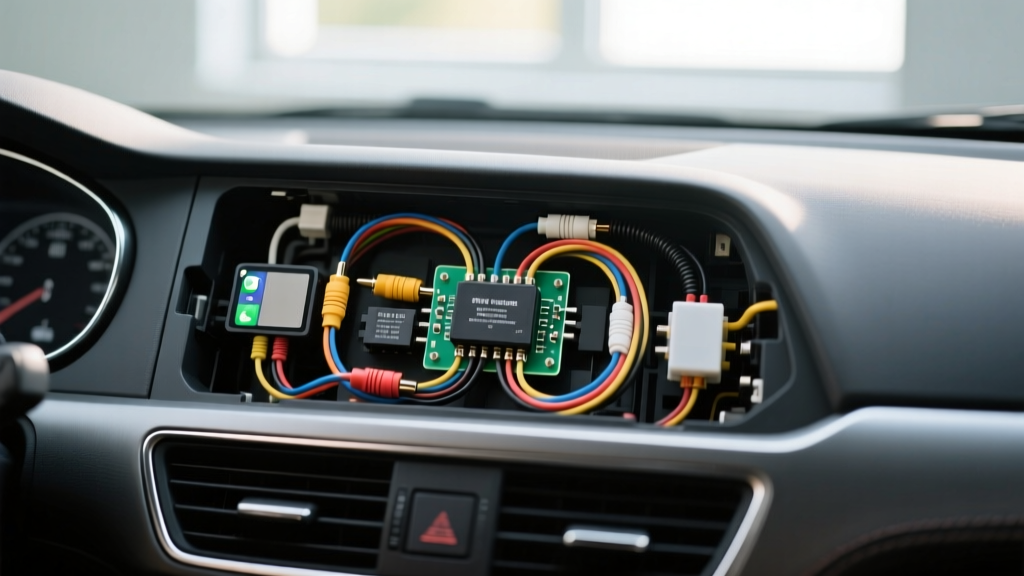
Project Overview: Upgrading to an Aftermarket CarPlay Head Unit
Executing a flawless apple carplay with backup camera install is one of the most rewarding interior modifications you can perform on a modern vehicle. While swapping a factory radio for an aftermarket double-DIN unit with Apple CarPlay and Android Auto is relatively straightforward, integrating a backup camera introduces complex video routing and reverse-trigger logic. Most DIY installers fail at the reverse trigger circuit, resulting in a camera that never activates or a head unit that displays a 'No Signal' error when shifting into reverse. This guide provides an automotive electrical expert's perspective on harness preparation, Pulse Width Modulation (PWM) filtering, OEM camera retention, and proper RCA shielding to ensure a factory-grade finish.
CTA-2006 Wiring Standards and Harness Preparation
Before tapping into any vehicle wiring, you must understand the Consumer Technology Association (CTA) color codes, which dictate aftermarket head unit wiring. According to CTA-2006 standards, the reverse trigger input on your new Alpine, Pioneer, or Sony head unit will always be a Purple/White wire. This wire requires a clean +12V DC signal to tell the head unit to switch from the CarPlay interface to the rear-view camera RCA input.
| Wire Function | CTA-2006 Color | AWG Size | Connection Method | Voltage Requirement |
|---|---|---|---|---|
| Reverse Trigger Input | Purple/White | 18 AWG | Adhesive Heat Shrink Butt | +12V DC (Clean) |
| Camera Power Output (RCA) | N/A (RCA Shield) | 22 AWG (Coax) | RCA Plug / Solder | +8V to +12V DC |
| 12V Accessory (IGN) | Red | 16 AWG | Crimp & Solder | +12V DC (Switched) |
| Chassis Ground | Black | 16 AWG | 10mm Ring Terminal | 0V (Bare Metal) |
Expert Warning: Never use 'T-taps' or 'Scotchlok' connectors for automotive camera wiring. The vibrations of a vehicle will cause these connectors to loosen, leading to voltage drops and intermittent camera failure. Always use nylon adhesive-lined heat shrink butt connectors or solder-and-seal splices for all 18 AWG and 16 AWG connections.
Sourcing the Reverse Trigger Signal
There are two primary methods to source the +12V reverse trigger signal for your Purple/White wire: hardwiring to the reverse lamp circuit or utilizing a CAN-bus data retention module.
Method 1: Hardwiring to the Reverse Lamp
In older vehicles (pre-2015) or base-model trucks, the reverse light circuit is a simple switched +12V system. You will need to locate the reverse light wire at the taillight assembly or the kick panel. Use a digital multimeter (DMM) to backprobe the harness. With the ignition ON and the vehicle in REVERSE, the DMM should read between 12.2V and 14.4V. Tap into this wire using an 18 AWG lead routed through the firewall to the head unit's Purple/White wire.
Method 2: CAN-Bus Data Modules (Maestro RR / Axxess)
For modern vehicles utilizing multiplexed wiring or LIN/CAN-bus networks, the reverse light is often controlled by a Body Control Module (BCM). Tapping directly into the taillight wire can trigger BCM faults or check engine lights. In these cases, a data retention module like the iDatalink Maestro RR or an Axxess ASWC-1 will read the CAN-bus reverse command and output a clean +12V trigger on a dedicated accessory wire (usually a Purple/White or Violet/White wire on the data harness). Connect this output directly to your head unit's reverse trigger.
The PWM Reverse Light Dilemma (And How to Fix It)
This is the most common failure point in an apple carplay with backup camera install. Many modern vehicles (including late-model GM, Ford, BMW, and Audi) use Pulse Width Modulation (PWM) to control exterior lighting. Instead of sending a steady +12V to the reverse bulb, the BCM sends a rapidly pulsing square wave to extend bulb life and monitor circuit resistance.
The Symptoms: If you connect your camera power and head unit trigger directly to a PWM reverse circuit, your camera will flicker or roll, and the head unit will rapidly click in and out of the reverse screen because it sees a fluctuating voltage instead of a steady +12V.
The Solution: You must isolate the PWM signal using a 12V automotive relay or a dedicated PWM filter like the PAC TR-4. If using a standard Bosch-style 5-pin relay, wire it as follows:
- Pin 85: Ground
- Pin 86: PWM Reverse Light Wire (Triggers the relay coil)
- Pin 30: Constant +12V Battery (Fused at 5A)
- Pin 87: Output to Head Unit Purple/White Wire AND Camera +12V Power
This setup uses the dirty PWM signal only to close the relay coil, allowing the head unit and camera to draw clean, steady +12V from the battery via Pin 30. As noted in MECP advanced installation guidelines, filtering PWM signals is mandatory for stable video processing in modern infotainment upgrades.
OEM Camera Retention: Voltage Step-Down Requirements
If your vehicle already has a factory-installed backup camera (e.g., in the tailgate of an F-150 or Ram 1500) and you wish to retain it, you cannot simply plug the OEM video cable into your new head unit. Most aftermarket head units output +8V to +12V DC over the RCA shield to power aftermarket cameras. However, OEM cameras typically operate on 5V to 6V DC. Sending 12V to a 6V OEM camera will instantly fry the internal CMOS sensor.
To fix this, you must install a camera step-down transformer (such as the Axxess AX-CAM11 or PAC LP7-2) between the head unit and the OEM camera harness. This module intercepts the 12V trigger, steps the voltage down to 6V for the camera, and passes the composite video signal back to the head unit's yellow RCA input.
RCA Routing and Ground Loop Prevention
Video signals are highly susceptible to Electromagnetic Interference (EMI). When routing the yellow RCA video cable from the rear of the vehicle to the dashboard:
- Separate Power and Signal: Route the RCA video cable down the passenger side of the vehicle, while routing all 12V power wires and speaker wires down the driver's side. Crossing power and RCA cables at 90-degree angles is acceptable, but running them parallel will induce alternator whine and video rolling.
- Avoid the Exhaust and Driveshaft: Secure the RCA cable using UV-resistant zip ties along the factory wiring loom. Never let the cable rest against the exhaust system or near the moving U-joints of the driveshaft.
- Ground Loop Isolators: If you experience horizontal scrolling bars on the camera feed when the engine is running, you have a ground loop. This occurs when the camera ground and the head unit ground are at different electrical potentials. Installing a PAC GROUND-1 inline RCA ground loop isolator near the head unit will eliminate this noise without degrading the composite video resolution.
For comprehensive vehicle-specific routing diagrams and trim removal procedures, Crutchfield's camera integration database remains an invaluable resource for verifying factory grommet locations and panel clip types.
Troubleshooting Decision Tree
If your Apple CarPlay with backup camera install is not functioning correctly, follow this diagnostic sequence:
- Symptom: Screen goes black in reverse, but CarPlay works fine.
Fix: Check the Purple/White trigger wire with a DMM. If it lacks +12V when in reverse, trace the connection back to the taillight or CAN-bus module. Ensure the RCA cable is fully seated in the 'Rear Camera' port, not the 'Front Aux' port. - Symptom: Camera image is rolling, flickering, or distorted.
Fix: You have a PWM dirty power issue or a ground loop. Install a 12V relay to filter the trigger, or add an RCA ground loop isolator. Verify the camera's ground wire is sanded down to bare, unpainted chassis metal. - Symptom: Camera displays 'No Signal' instantly upon shifting to reverse.
Fix: The head unit is triggering faster than the camera can boot up. Most CMOS cameras require 1.5 to 2 seconds to initialize. Access the head unit's hidden developer or camera settings menu and enable 'Camera Delay' or 'Reverse Trigger Delay' to give the sensor time to wake up before the LCD switches inputs.
Final Testing and Reassembly
Before reinstalling the dashboard trim panels and radio climate bezels, perform a full system benchmark. Start the vehicle, engage the parking brake, and verify Apple CarPlay connectivity via USB or wireless projection. Shift the vehicle into reverse (with the engine running to simulate real-world alternator voltage). The head unit should seamlessly transition to the camera feed within 2 seconds, displaying clear guidelines and zero video noise. Shift back into Drive; the screen should instantly revert to CarPlay. Once verified, secure the head unit chassis with the appropriate DIN sleeve screws or ISO brackets, and carefully snap all interior trim panels back into place using a nylon pry tool to prevent marring the soft-touch plastics.