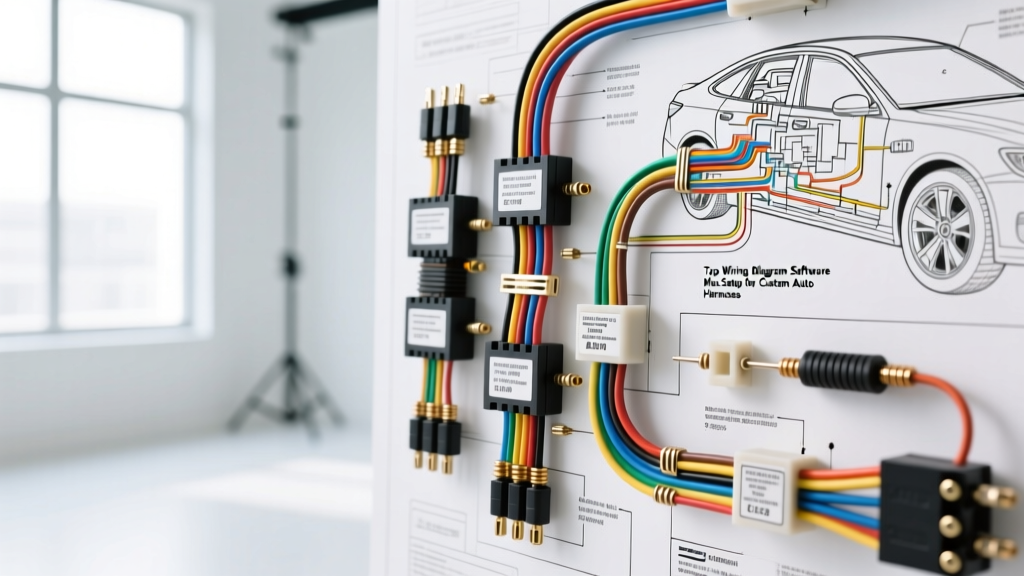
The Mac Ecosystem in Automotive Electrical Design
When transitioning from reading factory service manuals to fabricating custom automotive harnesses, finding reliable wiring diagram software Mac users can depend on is a common hurdle. While OEM dealership diagnostic tools like GM GDS2 or Ford FJDS are strictly Windows-based, the actual design, documentation, and schematic drafting of custom vehicle wiring diagrams are perfectly suited for macOS environments. Whether you are planning a complex LS V8 swap, integrating an aftermarket standalone ECU, or building a custom CAN-bus network for a restomod, utilizing Mac-compatible vector diagramming tools allows for precise, scalable, and highly detailed electrical blueprints.
In this practical installation and setup guide, we will walk through configuring a Mac-based diagramming environment specifically for automotive electrical work. We will then apply this setup to a real-world project: drafting a standalone harness schematic for a GM Gen III LS (P59 PCM) engine swap, complete with exact wire gauges, pin configurations, and connector specifications.
Step 1: Installing and Configuring Your Mac Diagram Environment
Unlike generic flowchart tools, automotive wiring diagrams require strict adherence to SAE and ISO electrical symbols, precise grid snapping for terminal blocks, and the ability to handle complex multi-layer harness routing. Applications like OmniGraffle, ConceptDraw PRO, or EdrawMax (which offers a robust native Mac client) are the industry favorites for independent harness builders.
- Install the Software and Import Automotive Libraries: After installing your chosen application, download DXF or SVG symbol packs specifically designed for automotive electrical systems. Look for libraries containing standard SAE symbols for relays (ISO mini and micro), fuses (ATO, Mini, Maxi), and ground nodes.
- Configure the Grid and Snap Settings: Set your canvas grid to 0.1-inch increments. This matches the physical spacing of standard breadboards, terminal strip blocks, and Deutsch connector face layouts, making it easier to translate your digital diagram to a physical harness board.
- Establish Wire Color and AWG Layers: Create dedicated vector layers for different wire gauges. For example, assign a 2.0pt line weight for 10-12 AWG power circuits, a 1.0pt line weight for 14-16 AWG switched circuits, and a 0.5pt dashed line for 18-20 AWG shielded sensor signals. This visual hierarchy prevents critical errors during the physical crimping phase.
Step 2: Practical Application - Diagramming a Gen III LS P59 Standalone Harness
To demonstrate the power of a properly configured Mac diagramming workspace, let us draft the core schematic for a standalone harness using a GM P59 PCM (commonly found in 1999-2005 LS1, LS2, and LS6 applications). When designing this harness in your software, you must reference the Chevrolet Performance crate engine documentation to ensure accurate pinouts for the Black (C1) and Gray (C2) ECU connectors.
The P59 PCM utilizes Delphi (now Aptiv) Metri-Pack connectors. Your diagram must clearly label not just the pin number, but the specific cavity plug, wire seal, and terminal type required for each circuit. According to Aptiv Metri-Pack specifications, the 150.2 series is used for low-current sensors, while the 280 series handles higher-current injectors and power feeds.
P59 PCM Connector C1 (Black) Critical Pinout & Wire Specification Table
When building your schematic table in the software, include the following columns to ensure your workbench team has all necessary fabrication data. All wire sizing below conforms to the SAE J1128 standard for TXL/GXL cross-linked automotive wire.
| Pin Number | Function / Circuit | Wire Color (OEM Std) | AWG Size & Type | Connector / Terminal Series |
|---|---|---|---|---|
| 1 | Ignition 12V Feed (Switched) | Pink | 14 AWG GXL | Metri-Pack 280 Female |
| 2 | PCM Main Ground | Black/White | 14 AWG GXL | Metri-Pack 280 Female |
| 21 | Crankshaft Position Sensor (+) | Tan (Shielded) | 18 AWG TXL | Metri-Pack 150.2 Female |
| 22 | Camshaft Position Sensor (+) | Purple (Shielded) | 18 AWG TXL | Metri-Pack 150.2 Female |
| 31 | Injectors 1, 3, 5, 7 (Bank 1 Power) | Pink/Black | 14 AWG GXL | Metri-Pack 280 Female |
| 58 | Serial Data (Class 2 / OBD-II) | Dark Green | 18 AWG TXL | Metri-Pack 150.2 Female |
Step 3: Advanced Routing - CAN-Bus and Shielded Sensor Circuits
A major advantage of using professional wiring diagram software on a Mac is the ability to visually map out complex twisted-pair routing and shielding grounds, which are critical for modern engine management systems. If your LS swap utilizes an electronic throttle body (DBW) or you are integrating a Holley Terminator X system via CAN-bus, your diagram must explicitly detail the physical twist rate and termination resistors.
- CAN-Bus Routing: In your software, draw CAN-High (typically White or Yellow) and CAN-Low (typically Green or Blue) as parallel lines with a zig-zag overlay to indicate a twisted pair. Specify a twist rate of 1 twist per inch. Include 120-ohm termination resistors at both extreme ends of the CAN-bus backbone in the schematic.
- Shielded Sensor Circuits: For the Crank (Pin 21) and Cam (Pin 22) sensors, the diagram must show the shield drain wire. Route the bare copper drain wire to a dedicated, clean chassis ground ring terminal—not back to the ECU sensor ground. Label this clearly in your Mac software using a distinct "Shield Ground" symbol to prevent technicians from accidentally splicing it into the 5V reference ground.
- Crimping Callouts: Use text annotation tools in your software to specify the exact crimping dies required. For the Metri-Pack 150.2 terminals (18-22 AWG), note the use of the Sargent 1026-CT or Aptiv 12094429 hand crimper to ensure the core and insulation crimps meet pull-force specifications.
Step 4: Exporting Schematics for the Workbench
Once your custom harness diagram is complete, the final step is exporting it for the physical build environment. Garage and workbench environments are harsh; they involve grease, soldering flux, and heat shrink tubing. Do not rely on viewing the diagram on a laptop screen while crimping.
- Flatten and Export to PDF: Export your Mac diagram as a high-resolution (300 DPI) PDF. Flatten the vector layers to prevent accidental editing if opened on a shop tablet.
- Print and Laminate: Print the schematic on 11x17 (Tabloid) or ANSI D size paper. Laminate the physical copy or place it inside a heavy-duty acrylic workbench sleeve. This allows you to use a dry-erase marker to check off circuits as they are pinned and continuity-tested.
- Generate a BOM (Bill of Materials): Use the data extraction features in your software to generate a CSV file of all terminals, cavity plugs, wire seals, and wire lengths. This BOM can be imported directly into supplier portals like Mouser or Waytek to order the exact quantities of Aptiv connectors and SAE J1128 TXL wire needed for the project.
By leveraging the right wiring diagram software Mac environments offer, custom automotive electricians can bridge the gap between digital precision and physical fabrication, ensuring every pinout, ground node, and CAN-bus termination is executed flawlessly on the very first attempt.