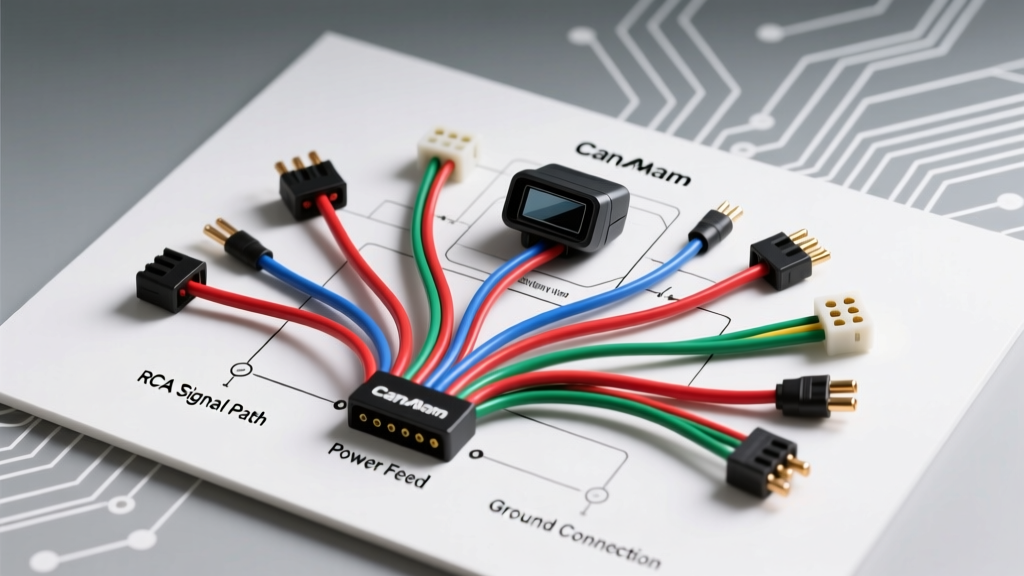
Mastering the Can-Am Rear View Camera Installation Troubleshooting Flow
Upgrading your UTV with a backup camera is essential for trail safety and worksite awareness, but the Can-Am rear view camera installation process is rarely plug-and-play. Unlike standard automotive applications, Can-Am (BRP) side-by-sides like the Maverick X3, Defender, and Commander generate significant electromagnetic interference (EMI) from their high-output stators and lack traditional 12V reverse light circuits. When your digital display shows a black screen, rolling static, or fails to trigger in reverse, you need a systematic diagnostic approach.
This step-by-step troubleshooting flow is designed for automotive and off-road electrical technicians to isolate power faults, video signal degradation, and CAN-bus trigger anomalies in BRP vehicles.
Phase 1: Power and Ground Verification
The most common point of failure in any off-road camera system is inadequate power delivery or a compromised chassis ground. UTV frames are heavily powder-coated, which acts as an electrical insulator. If your camera fails to power on, follow this diagnostic sequence.
Step 1: Test the 12V Accessory Circuit
Never tap directly into the stator output wires; the raw AC voltage will instantly destroy the camera's internal voltage regulator. You must tap a keyed 12V+ source at the main fuse block or accessory busbar.
- Multimeter Setup: Set your digital multimeter (DMM) to DC Voltage (20V scale).
- Testing: Probe the camera's power wire (typically Red or Yellow on aftermarket harnesses) against a known good battery negative. You should read between 12.4V and 14.2V with the key in the 'ON' position.
- Wire Spec: Ensure the power run from the busbar to the rear of the UTV is constructed of 18 AWG GXL (Cross-Linked Polyethylene) wire, which withstands engine bay temperatures up to 125°C.
Step 2: Isolate the Chassis Ground
If the camera powers on intermittently when hitting bumps, your ground is failing. The camera's black ground wire must terminate at a dedicated ground busbar or a sanded, bare-metal point on the chassis roll cage.
- Continuity Test: Disconnect the battery. Set the DMM to the Continuity/Ohms setting. Probe the camera ground wire and the negative battery terminal. Resistance must read less than 0.5 ohms.
- Corrosion Prevention: Apply dielectric grease (e.g., NO-OX-ID) to all Deutsch DT 2-pin or M12 aviation connector terminals to prevent moisture intrusion from mud and water crossings.
Phase 2: Video Signal and Stator Noise Diagnostics
If the camera powers on but the BRP 7.6-inch or 10.25-inch digital display shows rolling horizontal bars, scrolling static, or a completely blue/no-signal screen, you are dealing with signal interference or an open video circuit.
Step 3: Eliminate Stator EMI and Ground Loops
Can-Am stators output high-amperage AC current that is rectified to DC. Inadequate filtering by the vehicle's voltage regulator allows high-frequency AC ripple to bleed into the 12V DC system. This ripple travels up the camera's power wire and induces a ground loop on the RCA video shield.
- The Fix: Install a 12V DC power line filter (choke) near the camera's power source, or splice an RCA ground loop isolator into the video cable near the dash display.
- Shield Grounding: Ensure the outer braided shield of the RCA cable is grounded only at the display end. Grounding both ends creates an antenna loop that absorbs ignition coil and stator noise.
Step 4: Inspect the 4-Pin Aviation Connector
Most heavy-duty Can-Am rear view camera installations utilize a 4-pin M12 aviation connector to bridge the cab and the rear bed. These pins are notorious for bending or pushing back out of the plastic housing.
- Inspect the male and female pins for tension. Use a micro-terminal pick to push the locking barbs forward.
- Verify the pinout: Pin 1 (12V+), Pin 2 (Ground), Pin 3 (Video Signal), Pin 4 (Audio/Trigger). A crossed Pin 1 and Pin 3 will send 12V directly into the display's sensitive video input, potentially frying the head unit.
Phase 3: Reverse Trigger and CAN-Bus Integration
Unlike street vehicles, the Can-Am Defender or Maverick does not have a traditional 12V reverse light switch. The transmission position is read by the ECU via the CAN-bus network. Tapping the wrong wire can trigger ECU fault codes or limp-mode.
Step 5: The Reverse Gear Trigger Circuit
To trigger the display to switch to the camera input when the vehicle is shifted into Reverse, you have two viable options:
- Manual Toggle Switch (Recommended): Install a momentary ON/OFF rocker switch on the dash. Wire this switch to trigger a 12V 30A Bosch-style automotive relay. The relay then sends 12V+ to the display's reverse trigger wire (often Purple or Purple/White on aftermarket harnesses). This guarantees zero CAN-bus interference.
- CAN-Bus Decoder Module: If using an advanced BRP-specific interface module, ensure the module's CAN-High and CAN-Low wires are spliced into the main dash harness using T-taps, and verify the termination resistor is intact.
Symptom-Cause-Fix Decision Tree
Use this rapid-reference table to diagnose specific failures during your Can-Am rear view camera installation.
| Symptom | Probable Cause | Technical Fix |
|---|---|---|
| Display shows 'No Signal' or Blue Screen | Open video circuit or bent aviation pin | Test RCA center pin continuity; reseat M12 aviation pins. |
| Rolling horizontal bars on screen | Stator AC ripple / Ground loop | Install RCA ground loop isolator; verify single-point shield ground. |
| Camera powers off when engine revs | Voltage drop on 18 AWG power wire | Upgrade to 16 AWG GXL power wire; clean busbar terminals. |
| Display won't switch to camera in Reverse | Missing 12V trigger signal to head unit | Wire dash toggle switch through a 30A relay to trigger wire. |
| Camera image is flipped upside down | Loopback wire cut/connected incorrectly | Snip the green/white image-flip loop wire on the camera pigtail. |
BRP Dash Display Accessory Pinout Reference
When integrating the RCA and trigger wires into the rear of the BRP digital display, reference the standard accessory port pinout. Always verify with a DMM, as BRP updates harness colors between model years.
| Pin Position | Wire Color (Typical) | Function | AWG Spec |
|---|---|---|---|
| Pin 1 | Red / Yellow | Keyed 12V+ Accessory Power | 18 AWG |
| Pin 2 | Black | Chassis Ground | 18 AWG |
| Pin 3 | Purple / White | Reverse Trigger Input (12V+) | 20 AWG |
| Pin 4 | White | CAN-Bus High | 22 AWG |
| Pin 5 | Green | CAN-Bus Low | 22 AWG |
Authoritative References and Standards
For deeper electrical schematics and off-road EMC compliance, consult the following resources:
- BRP Operator Guides & Technical Service Bulletins - Official wiring diagrams and accessory integration protocols for Maverick and Defender platforms.
- SAE J1113: Electromagnetic Compatibility Standards - SAE International guidelines for managing EMI and stator noise in off-road vehicle electrical systems.
- Mobile Electronics Association (MEA) - Industry-standard installation practices for wire routing, grommet sealing, and relay integration in harsh environments.
By following this structured troubleshooting flow, you ensure a reliable, noise-free Can-Am rear view camera installation that withstands the extreme vibrations and electrical loads of off-road operation. Always disconnect the negative battery terminal before splicing into the main dash harness, and use heat-shrink butt connectors with marine-grade adhesive lining for all under-bed wire joints.